---
title: Setting up Meeting Places and Pickups
description: Learn how to set up meeting points, pickup areas, pickup points, and individual arrangements on checkyeti to ensure a smooth booking experience for your guests.
---
[Skip to content](https://help.checkyeti.com/en/provider-help/setting-up-meeting-places-and-pickups#main-content)
- [English](https://help.checkyeti.com/en/provider-help/setting-up-meeting-places-and-pickups)
- [Deutsch](https://help.checkyeti.com/de/provider-help/setting-up-meeting-places-and-pickups-de)
- [Español](https://help.checkyeti.com/es/provider-help/configuración-de-puntos-de-encuentro-y-recogidas)
- [Français](https://help.checkyeti.com/fr/provider-help/setting-up-meeting-places-and-pickups)
- [Italiano](https://help.checkyeti.com/it/provider-help/configurazione-dei-punti-di-incontro-e-dei-pick-up)
English
Show submenu for translations
[](https://www.checkyeti.com/)
- [Go to Customer Help Center](https://help.checkyeti.com/en/customer-help)
Open main navigation
Close main navigation
- [Go to Customer Help Center](https://help.checkyeti.com/en/customer-help)
- - [English](https://help.checkyeti.com/en/provider-help/setting-up-meeting-places-and-pickups)
- [Deutsch](https://help.checkyeti.com/de/provider-help/setting-up-meeting-places-and-pickups-de)
- [Español](https://help.checkyeti.com/es/provider-help/configuración-de-puntos-de-encuentro-y-recogidas)
- [Français](https://help.checkyeti.com/fr/provider-help/setting-up-meeting-places-and-pickups)
- [Italiano](https://help.checkyeti.com/it/provider-help/configurazione-dei-punti-di-incontro-e-dei-pick-up)
English
Show submenu for translations
How can we help you?
- There are no suggestions because the search field is empty.
1. [Activity Provider Help Center](https://help.checkyeti.com/en/provider-help?hsLang=en)
2. [checkyeti Hub](https://help.checkyeti.com/en/provider-help/checkyeti-hub?hsLang=en)
3. [Meeting Points](https://help.checkyeti.com/en/provider-help/checkyeti-hub?hsLang=en#meeting-points)
# Setting up Meeting Places and Pickups
Setting up an accurate meeting place is essential for a smooth experience. This is the location where guests join your activity, whether it is a **fixed point**, a **pickup service**, or a **flexible arrangement coordinated** after the booking is confirmed.
**1. Choose** **Your Meeting Point Category**
To add a new location, click the ***+ button*** in your ***Meeting places and pickups*** overview.

A modal will appear asking: ***How do customers get to the activity?***
- **They go to the starting point of the activity by themselves** (e.g. meeting place, port, office entrance) → sets up a ***Fixed Meeting Place***. Select this if guests make their own way to a fixed location.
- **They get picked up** (by bus, car, etc.) → sets up a ***Pickup Area*** or ***Pickup Points Area***. Select this if you collect guests from a zone or a defined list of stops. You will choose between the two in the next step.
- **They can customise the meeting place and time directly after booking** → sets up an ***Individual Arrangement***. Select this if you prefer to coordinate the exact location and time with each guest personally after the booking is completed.
| ***Category*** | ***Description*** | ***What the guests see*** |
| --- | --- | --- |
| **Fixed Meeting Place** | A specific address where everyone meets (e.g., a port or office) | Title of the place + your specific instructions |
| **Pickup Area** | Pick up from any hotel or address within a defined zone | "*Pickup is available from any hotel or address within this area*" |
| **Pickup Points Area** | A fixed list of stops for pickup (mentioned in “Pickup” section) | "*The full list of pickup points is provided in the offer description*" |
| **Individual Arrangement** | You coordinate the time and place with guests directly after the booking | "*A designated meeting place and time are arranged after the booking is completed*" |
You can select more than one category if your activity offers different ways to meet, but they must be edited one at a time. Complete all necessary steps and save your changes before adding another point.
**2. How to Set Up Your Location**
The setup process depends on the category you choose. For all types, the system uses a **Google Maps search** to ensure accuracy.
- **A. Fixed Meeting Places**
Enter the exact address in the search bar.
A **Google Maps preview** will appear to confirm the pin is in the right place. Once a match is found, the system displays the **Destination** your activity will be grouped under. If the destination is incorrect, contact the support team directly from the screen.
Once you proceed, you can enrich it with the following optional fields:
***- Description***: Add any instructions that help guests find you. For example, *"Come to our boat with a yellow sign"* or *"Our office is behind the Grand Café."* Keep it practical and only include what genuinely helps.
***- Title*** (optional): The name is set automatically based on the destination. You can add extra detail here if needed. For example, *"Port A"* or *"Gate 3.".* Most activity providers leave this blank.
On the right side of the screen, a **Customer view** panel shows you exactly what guests will see, including the title, description, and a "***Show on map***" link.
- **B. Pickup Area**
Choose this if you plan to pick guests up from wherever they are staying or waiting within a zone (no fixed pickup locations). This zone can be either within a specific city, or even a broader region, up to an entire island. Guests provide their address at booking, and you arrange the details with them directly.
Search for the area where you offer your pickup service. The system will display a pin on the map. A **Customer view** panel on the right shows guests the following message: *"Pickup is available from any hotel or address within this area."*
**Important**: Customers will be informed about your suggested pickup details, but you are responsible for confirming the exact arrangements with each customer individually.
- **C. Pickup Points Area**
Select this option if your service only stop at specific, pre-defined locations (for example, a set list of hotels, bus stops, or landmarks). The area can be defined within a specific city, a broader region, or even an entire island.
The map setup works the same way as Pickup Area, search for a location or region to define the area. However, unlike Pickup Area, this option is recommended if you only collect guests from a **fixed list of stops** (e.g. specific hotels, bus stops, or landmarks). Guests will find the full list of pickup points in your offer description.
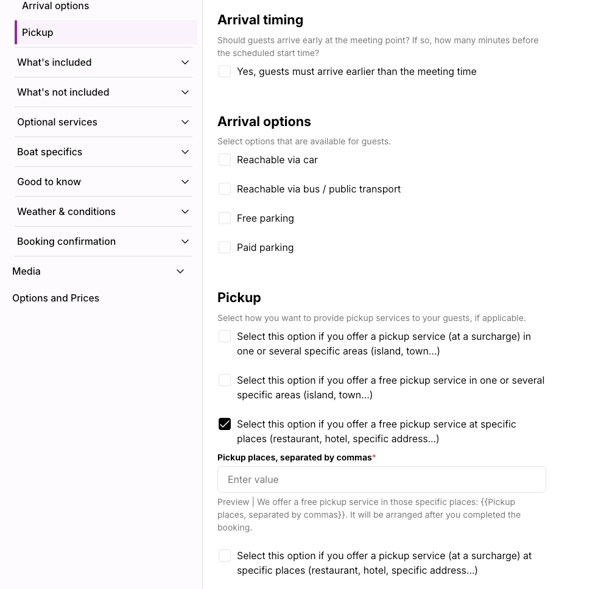
**Important: your pickup list must always be complete and up to date.** Guests rely on the list in your offer description to know where to wait. If the list is missing, incomplete, or out of date, guests may show up at the wrong location. Make sure to add and maintain the list under***Content \> How to Get There \> Pickup*** for every offer this pickup point is assigned to.
- **D. Individual Arrangement**
Individual Arrangement is different from both pickup options. With a Pickup Area or Pickup Points Area, the meeting logistics are defined upfront. With Individual Arrangement, **nothing is fixed in advance.** There is no address, no zone, and no stop list. Instead, you and the guest agree on where to meet after the booking is completed.
Search for the **general area** where your activity takes place. This is not the exact pickup location, it is simply used to group your activity under the right destination so guests can find it when browsing.
**Important:** Make sure your offer description clearly explains how the arrangement process works (for example, *"After booking, we will contact you within 24 hours to confirm the meeting point and time").* This sets the right expectations and avoids confusion.
***The yeti tip***
Sometimes it is easier to select an **Individual Arrangement** or a **Pickup Points Area** for one location rather than pinning several individual fixed meeting points. This keeps your offer clear and avoids unnecessary complexity for guests.
**Troubleshooting & Support**
If the system cannot find a match for your location, an error message will appear with a link to contact our team. We want to make sure the map shows the correct spot every time.Reach out to us at change@checkyeti.com with a description of your setup and the issue. The checkyeti team will review it and come back to you.
- [Booking process](https://help.checkyeti.com/en/provider-help/booking-process?hsLang=en)
- [Booking requests](https://help.checkyeti.com/en/provider-help/booking-requests?hsLang=en)
- [Booking amendments](https://help.checkyeti.com/en/provider-help/booking-amendments?hsLang=en)
- [Account access and management](https://help.checkyeti.com/en/provider-help/account-access-and-management?hsLang=en)
- [Cancellations](https://help.checkyeti.com/en/provider-help/cancellations?hsLang=en)
- [Refunds](https://help.checkyeti.com/en/provider-help/refunds?hsLang=en)
- [Payments](https://help.checkyeti.com/en/provider-help/payments?hsLang=en)
- [Invoices](https://help.checkyeti.com/en/provider-help/invoices?hsLang=en)
- [Customer contact](https://help.checkyeti.com/en/provider-help/customer-contact?hsLang=en)
- [Availability and calendar management](https://help.checkyeti.com/en/provider-help/availability-and-calendar-management?hsLang=en)
- [checkyeti Hub](https://help.checkyeti.com/en/provider-help/checkyeti-hub?hsLang=en#main-content)
- [Pricing & Availability](https://help.checkyeti.com/en/provider-help/checkyeti-hub?hsLang=en#pricing-availability)
- [Meeting Points](https://help.checkyeti.com/en/provider-help/checkyeti-hub?hsLang=en#meeting-points)
- [Activity Content](https://help.checkyeti.com/en/provider-help/checkyeti-hub?hsLang=en#activity-content)
[](https://www.checkyeti.com/)
© checkyeti 2026 - Imprint
Made in Austria, Switzerland & France
Copyright © 2026, checkyeti GmbH