
Options
Options are different versions of the same tour. They can differ in duration, meeting place, or what is included. For example, you might offer a morning and evening tour, or a choice between a 2-hour and 4-hour tour.For shared boat tours, pricing is set per person and structured by options. Each option defines the full setup, including the duration, participant types, meeting point details, and what is included in the option.
1. Duration
Specify the total duration of your tour in the duration field (for example, 6 hours and 30 minutes). This represents the length of the tour that the customers will see on your offer and use to plan their experience accordingly. This only includes the time spent on the boat and does not include travel time to or from the activity point, like hotel pickups or bus transfers.
2. Meeting Place
Define whether your tour has one or multiple departure locations. You have two possibilities:
- Departure is always from one location: All departures for this tour start from the same place.
- Departure can be from multiple locations: The tour can start from different locations, allowing you to configure specific start times, days, and prices for each location in the Schedule section.
Before setting prices, you must define your participant types, meaning the categories the customer can book. Each participant type has an associated age range.
The available participant types are grouped into two categories:
- By age group: Toddlers, Kids, Teens, Adults, Seniors.
- By accessibility needs: People with disabilities (PWD) or People with reduced mobility (PRM).
Since a 1€ minimum applies to all participant types, use categories to your advantage:
- If you want to offer toddlers for 1€ and charge more for older children, add Toddlers and Kids as separate types.
- If you want to offer all children the same price, simply add Kids as a single type.
If your activity has a minimum age, reflect this in two places:
- Enter the minimum age under Product specifics > Age group section.
- Adjust the starting age of your first participant category (e.g., Kids) so the range matches your requirement.
4. Included in your activity
Tick the boxes for items included in your price: Food, Drinks, Aperitif, or Pickup. If you offer two versions of a tour (e.g., one with lunch and one without), create two separate options.
5. Labels (Optional)
Labels help you and the customer distinguish between options.
- Visible for you: Labels appear in your options overview for easy navigation.
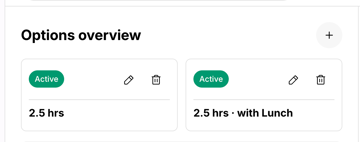
- Visible for guests: Labels appear on the booking page alongside the duration and price, allowing guests to clearly understand what each option includes before making a selection.
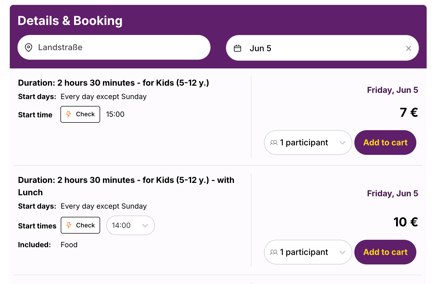
Labels are short, descriptive tags. Good examples include "with Lunch", "with Pickup", or "VIP". If a service is included in your price, remember to also incorporate its cost when setting your rates in the Schedule section.
The yeti tip
If all your options are identical (for example, lunch or hotel pickup is always included in your offer) leave the label blank. There's no need to differentiate between options that are the same, and keeping it empty avoids unnecessary complexity for both you and your guests.
Schedule
In this section, you configure the operational details: when the tour is available, where it starts, and the price.
A. Create your schedule
Start by giving your schedule a name. This is for your reference only and won’t be visible to guests. Choose a clear name so you can easily identify it later.
Then set the date range.
B. Configure the schedule details
For each date range, you can define:
- Start times
- Start days
- Price per participant category (minimum 1€ per type)
- Meeting places
Depending on your previous selection (single or multiple locations) in the Options section, you will see one of the following options:
- Single location. The location is fixed. If you want to change it, please save your work and go back to the Option > Meeting place section to define a new one.
- Multiple locations. You can select a departure location from your list of saved meeting places. Make sure to choose the location that matches the selected days and start times.
If the required location is not available yet, you can create a new one directly by clicking "Create a new meeting place”. For more details, visit our guide on Set up Meeting Places.
C. Multiple schedules and pricing rules
Each start time within a date range has one set price, keeping your pricing clear and consistent for guests.
To apply different prices for the same start time (for example during peak weeks) you can do this by setting up separate date ranges.
In addition, within a date range, each start time can only be associated with specific start days. If, for the same start time, the start days change during the season, you must also create new schedules according to your start day changes.
| Schedule Name | Date Range | Days of the Week | Start Time | Price |
| Low Season (Spring) | April 1 - Jun 30 | Monday - Sunday | 10:00 | €35 |
| High Season (Summer) |
Jul 1 - Aug 31 | Monday - Sunday | 10:00 | €50 |
| Low Season (Autumn) |
Sep 1 - Oct 31 | Monday - Sunday | 10:00 | €35 |
| Schedule Name | Date Range | Days of the Week | Start Time | Price |
| Low Season (Spring) | April 1 - Jun 30 | Monday - Sunday | 10:00 | €35 |
| July Schedule | Jul 1 - Jul 31 | Monday - Sunday | 9:00 | €35 |
| August Schedule | Aug 1 - Aug 31 | Monday - Friday | 9:00 | €35 |
Exception
If you want to add additional start times within an existing schedule while keeping existing prices the same, you can find more details here: Overlapping Schedules.
6. Save and Publish
Review your changes and click Save. When you are ready to go live, click Publish. It may take a short moment for the changes to become visible on checkyeti.
Troubleshooting & Support
If you run into any issues setting up your options or pricing, please reach out to us at change@checkyeti.com with a description of your setup and your issue. Our support team will review your request and get back to you.